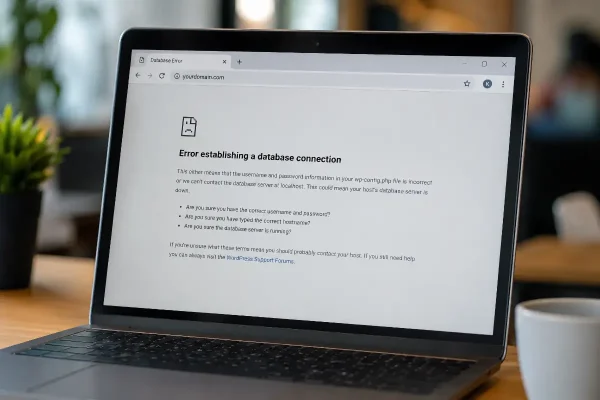
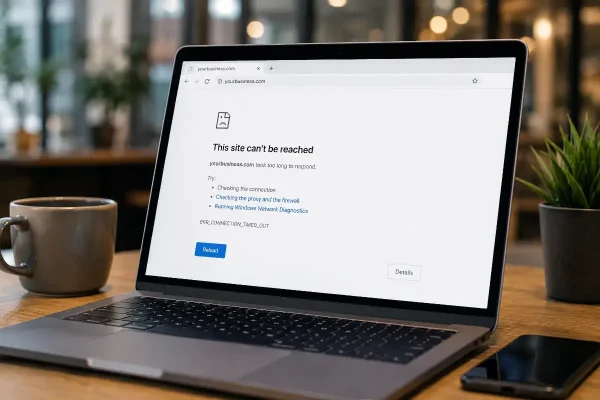
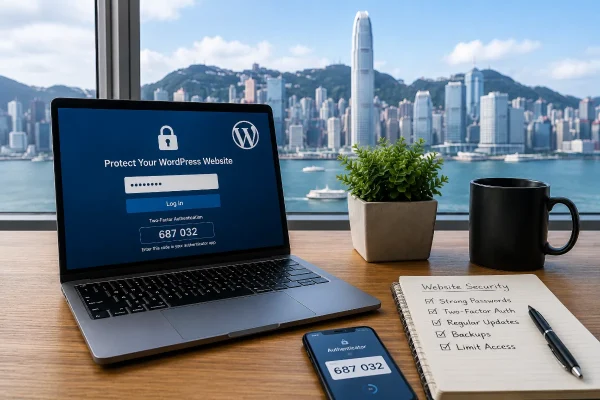
Most business owners don’t consider the security of their WordPress login until something goes wrong. Hong Kong business owners are no exception.
Your login page is not the part of your website customers see. It is not your homepage, your service page, your booking form, your WhatsApp button or your contact page. It sits quietly in the background until you need to update a price, publish an article, change a team profile or check an enquiry form.
Attackers see it differently.
To them, your WordPress login page is a door. If they can get through it, they may be able to change your content, create new users, install malicious files, redirect visitors, access form entries or damage the trust you have built with customers.
This matters in Hong Kong because many small business websites are connected to real customer activity. A local clinic may receive appointment enquiries. A tutor may collect parent details. A consultant may receive business documents through a contact form. A retailer may connect WordPress to WooCommerce, payment tools or customer email systems.
You do not need to be a large bank like DBS or HSBC, or a large company to be targeted.
Automated bots do not care whether you are a Central professional services firm, a Kowloon trading company, a local restaurant, a home services business or a community organisation. They scan websites at scale, looking for weak passwords, old plugins, exposed login pages and abandoned user accounts.
Hong Kong’s cyber risk environment has become more serious. HKCERT has warned SMEs about rising data breach risks and recommends enabling multi-factor authentication as one practical protection. Hong Kong government information security guidance also recommends strong authentication, such as two-factor authentication, for accounts that handle sensitive data.
A password helps, but it should not be the only thing standing between your website and someone trying to get in.
Passwords are reused. They are shared between staff. They are saved in browsers. Some are sent through WhatsApp, email or spreadsheets. Even a strong password can become exposed if it was used on another service that later suffers a breach.
That is why two-factor authentication is worth setting up.
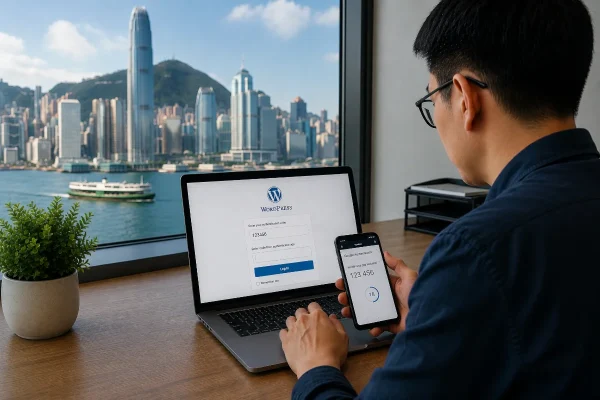
What two-factor authentication does
Two-factor authentication, often called 2FA, adds a second check after your password.
When you log in to WordPress, you still enter your username and password. After that, WordPress asks for a short code from an authenticator app on your phone.
For most small business websites, this is one of the simplest security improvements you can make. It protects the login point without making every website update difficult.
Once it is set up, the process is clear:
You enter your password.
You open the authenticator app on your phone.
You enter the current code.
Then you continue into WordPress.
Wordfence, a commonly used WordPress security plugin, includes this feature. When configured correctly, Wordfence 2FA makes it much harder for someone to access your website using a stolen, guessed or reused password.
How Wordfence 2FA works
When Wordfence 2FA is enabled on your WordPress account, your login process changes slightly.
You enter your username and password first. WordPress then asks for a six-digit code.
That code comes from an authenticator app on your phone, such as Google Authenticator. The code changes regularly, usually about every 30 seconds. A code that works now will not work later. A code from a minute ago is already out of date.
The practical benefit is simple. A password alone is no longer enough.
Someone may know your password. They may have guessed it. They may have found it in an old breach. Without the current authentication code from your phone, they should still be blocked from logging in.
For a Hong Kong business where staff, contractors or marketing support may all need website access, this extra check is useful. It reduces the risk created by shared passwords, casual access and old accounts that were never reviewed.
Install Google Authenticator first
Before setting up 2FA in WordPress, install an authenticator app on your phone.
Google Authenticator is a common free option.
On an iPhone, open the Apple App Store and search for Google Authenticator.
On an Android phone, open the Google Play Store and search for Google Authenticator.
Install the app and keep your phone nearby while you complete the WordPress setup.
You do not need to do much inside Google Authenticator before starting. Wordfence will show you a QR code. You will use Google Authenticator to scan it.
Set up 2FA in Wordfence
Log in to your WordPress dashboard as usual.
In the left-hand menu, go to Wordfence, then choose Login Security.
Inside the Login Security area, Wordfence will show a QR code for your account. This QR code connects your WordPress user account to the authenticator app on your phone.
Open Google Authenticator on your phone. Tap the option to add a new account, then choose the option to scan a QR code.
Point your phone camera at the QR code displayed inside WordPress.
Google Authenticator should then add your website and begin showing a six-digit code for it.
Return to the Wordfence screen in WordPress and enter the current six-digit code from Google Authenticator. Once Wordfence accepts the code, activate 2FA for your account.
From that point on, logging in to WordPress requires both your password and the current code from your authenticator app.
Do not skip the backup codes
During setup, Wordfence gives you backup codes. These are important.
Backup codes are used when you cannot access your authenticator app. That might happen because your phone is lost, damaged, replaced or reset. It can also happen if Google Authenticator is deleted or the website entry is removed by mistake.
Without backup codes, you may lock yourself out of your own website.
Download the codes when Wordfence provides them and store them somewhere secure. A password manager is usually a good place. Printing them and storing them with other secure business records can also work, provided access is controlled.
Do not save them somewhere obvious. An email to yourself with the subject line “WordPress backup codes” is a poor place to keep them.
Treat backup codes like spare keys to your website.
Each backup code is generally for one-time use. When you use a backup code, generate a new set in Wordfence and safely replace the old ones.
Test the login while you still have access
Once 2FA is active, test it before you need to rely on it.
Open a private browsing window, or use a different browser, and go to your WordPress login page.
Enter your username and password.
When WordPress asks for the authentication code, open Google Authenticator and enter the current six-digit code for your website.
This takes a minute, but it is worth doing.
It confirms the setup is working. It also helps you understand what the login process will look like next time.
This prevents a common problem: setting up 2FA, logging out, then discovering later that the app was not connected properly or the backup codes were never saved.
Which WordPress users should use 2FA?
Every WordPress administrator account should have 2FA enabled.
Administrator accounts can usually install plugins, change website settings, add users, change forms and make major changes to your site. If an attacker gets access to one administrator account, the damage can be serious.
It is also worth enabling 2FA for editors, marketing users and anyone who can publish content, manage forms or access private customer information through the website.
This is especially relevant in Hong Kong businesses where website access may be shared with a freelance designer, SEO consultant, copywriter, virtual assistant or external IT support provider.
Old user accounts should also be reviewed.
When someone no longer works with your business, remove their account. When a contractor no longer needs administrator access, reduce their permissions. A person who only writes blog posts does not need full control of the website.
Security is partly about adding protection. It is also about removing access that should no longer exist.
2FA is only one part of WordPress security
Wordfence 2FA is a strong step, but it should not be the only thing protecting your website.
Use strong, unique passwords for each WordPress user.
Keep WordPress, plugins and themes updated.
Remove plugins you no longer need.
Avoid sharing one administrator account between several people.
Check that your hosting provider takes backups, updates and security seriously.
Review website users at least a few times a year.
For a Hong Kong SME, these basics matter. Many website security problems come from ordinary things being ignored for too long: an old plugin, a weak password, a former staff account, or a backup process nobody has checked.
Your website may be small, but it can still hold customer data, enquiry records, payment connections, business documents and brand trust.
That makes the login worth protecting.
Need help securing your WordPress website?
We can help configure Wordfence, set up two-factor authentication, review website users, clean up old access and strengthen your WordPress security settings.
If your website supports your business, your login security is worth getting right.
Contact Asporea Digital Hong Kong to get help with your WordPress website security, our phone number is +852 9290-6881.